Most developers know you can download files with cURL — but almost nobody uses more than 3% of what it can actually do. cURL is now running on over 20 billion devices worldwide…yes, you read that right. It ships by default on macOS, Windows 10+, and virtually every Linux server on the planet. It's inside your phone, your smart TV, your car, and the firmware of devices you've never thought twice about. It is, quite plausibly, the most installed piece of software ever written.
And yet most people use curl -O URL and call it a day, and never go further. Over a decade of building production file transfer systems, I've learned exactly where that gap lives.
This tutorial goes from cURL basics (how to download with cURL) to production-ready scripts, batch downloads, authenticated transfers, and resume logic. But unlike most cURL guides, we'll also be honest about where it breaks down and what to reach for instead. Let's build.
In brief:
- The core command to download file with cURL is curl -O [URL]; it saves the file using its original server-side filename; use -o [filename] to choose your own
- For most downloads using cURL, you need three flags together: -L to follow redirects, -C - to resume interrupted downloads, and --retry to handle flaky connections automatically
- cURL supports batch downloads via shell loops, URL globbing (curl -O https://example.com/file[1-100].zip), and parallel execution, covering everything from small lists to thousands of files
- For authenticated downloads, cURL handles Basic Auth (-u), Bearer tokens (-H "Authorization: Bearer TOKEN"), cookies (-b/-c), and custom headers, without ever exposing credentials in plain text when used correctly
- cURL vs Wget vs Python Requests: cURL wins on API interactions and one-off downloads; Wget wins on recursive site crawling; Python Requests wins on complex scraping pipelines with parsing logic
- When cURL isn't enough (JavaScript-rendered pages, anti-bot protection, large-scale scraping infrastructure), our AI Web Scraping API handles all of that infrastructure automatically
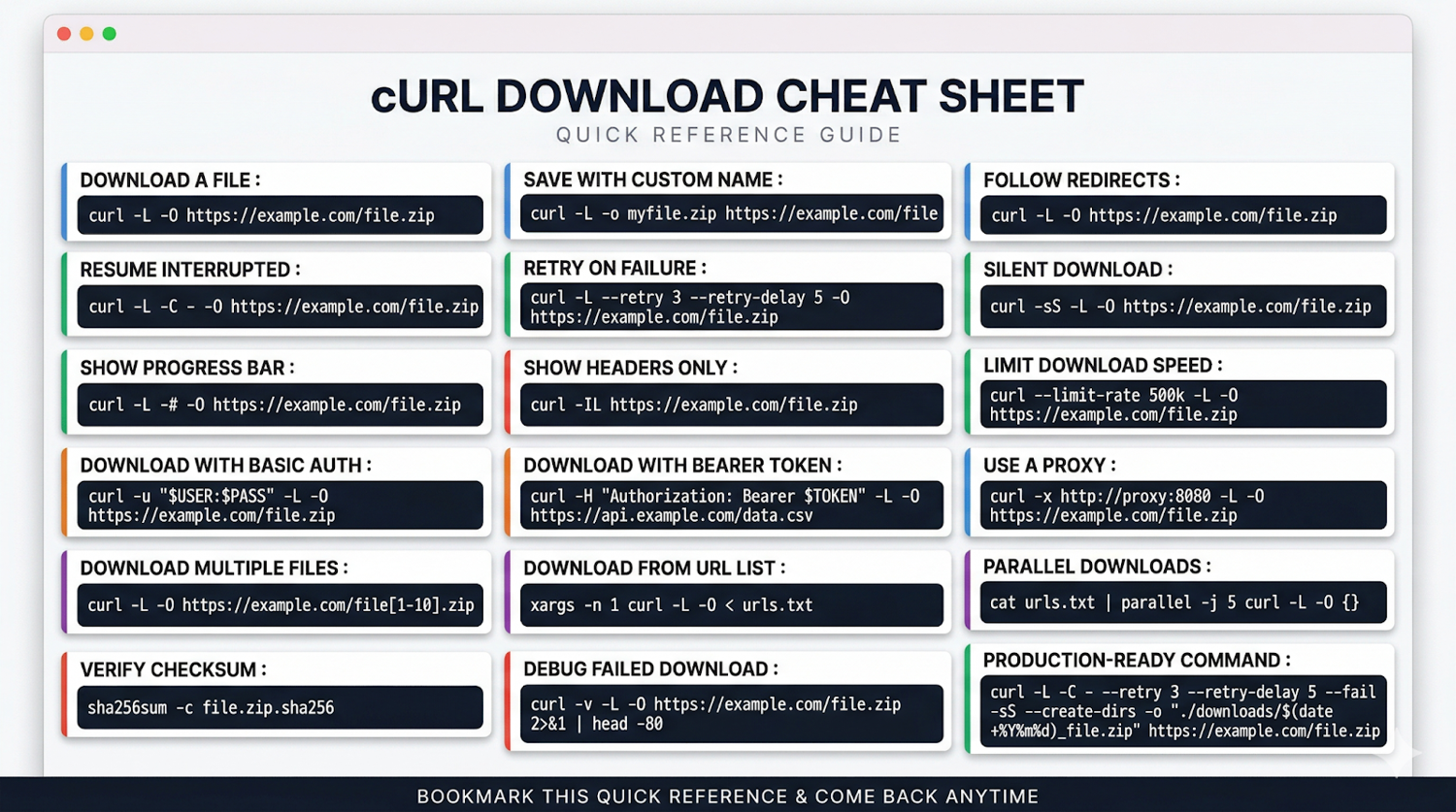
Save the reference card above. Every command in this guide, in one place. We'll build up to all of them.
What is a Client URL (cURL)?
Client URL (cURL) is a command-line tool and library for transferring data using Internet protocols. It started in 1996 as 160 lines of C code, a side project by Swedish developer Daniel Stenberg to automate currency exchange rate fetching.
Today, it ships within Linux infrastructure, runs in Tesla vehicles, and powers data transfer for billions of computers and over 20 billion devices worldwide.
cURL's name means exactly what it says: client URL. You give it a URL. It fetches the thing at that URL. It does this for HTTP, HTTPS, FTP, SFTP, IMAP, SMTP, and a dozen other protocols without you having to think about the underlying mechanics.
Why Use cURL for File Downloads? 5 Main Features
What makes cURL the right tool for downloading files specifically comes down to five things:
- Protocol breadth: One tool for HTTP APIs, FTP servers, SFTP transfers, and more; no context switching
- Scriptability: Drops cleanly into shell scripts, cron jobs, CI/CD pipelines, and Makefiles
- Resource efficiency: Minimal CPU and memory footprint; runs comfortably on the smallest cloud instances
- Advanced download control: Resume support, redirect following, retry logic, bandwidth throttling; all built in
- Universal availability: Pre-installed on macOS, Windows 10+, and every mainstream Linux distribution
Pro Tip: The libcurl library (the C library underneath the cURL command-line tool) is what actually runs inside all those 20 billion devices. If you ever need to embed download capabilities directly into a Python, PHP, or Node.js application, libcurl bindings are available for all of them. For instance, the pycurl Python library gives you everything the CLI does, but within your application code, with full programmatic control.
cURL vs Wget vs Python Requests
The three most common tools for command-line file downloads each have a distinct sweet spot. The core distinction: cURL gives you control, Wget gives you breadth, and Python Requests gives you processing power.
Here's how these three tools compare across the scenarios that matter when downloading files at scale:
| Capability | cURL | Wget | Python Requests |
|---|---|---|---|
| Single file download | One command | One command | 5–10 lines of code |
| Follow redirects | -L flag | Default behaviour | Default behaviour |
| Resume interrupted downloads | -C - | -c flag | Manual implementation |
| Recursive / mirror download | Not built in | Core feature via --mirror | Not built in |
| Protocol support | 25+ protocols | HTTP, HTTPS, FTP | HTTP, HTTPS |
| API interactions | Full control | Limited | Full control |
| HTML parsing | Not built in | Not built in | Pairs with BeautifulSoup |
| Session management | Manual with cookies | Basic | Native Session object |
| Response processing | Pipe to jq / awk | Limited | Native JSON, text, binary |
| Error handling | Exit codes + scripting | Exit codes | Exception-based |
| CI/CD integration | Zero dependencies | Zero dependencies | Requires a Python environment |
The decision is usually quick:
- Use cURL when you need to download specific files, interact with APIs, or build lightweight shell automation with no dependencies.
- Use Wget when you need to mirror an entire website, recursively crawl a directory structure, or grab everything under a URL path without writing a script.
- Use Python Requests when you need to parse downloaded content, manage complex sessions, chain multiple requests, or build a pipeline that processes data rather than just saves it.
Pro Tip: I keep both cURL and Wget installed and reach for each based on one question: is the job "interact with this endpoint" or "grab this entire structure"? The answer determines the tool in under a second. Python Requests comes into play only when I need to do something with the data beyond storing it on disk.
What is cURL Used For Beyond File Downloads?
File downloading is the most common use case, but cURL is also the tool most developers reach for when:
- Testing REST APIs: curl -X POST -H "Content-Type: application/json" -d '{"key":"value"}' https://api.example.com is faster than opening Postman for a quick check
- Debugging HTTP headers: curl -I [URL] returns just the response headers, letting you inspect status codes, redirect chains, and cache behaviour without downloading the full body
- Automating form submissions: cURL handles multipart form data, file uploads, and session cookies natively
- Checking server connectivity: curl -v [URL] gives you a full verbose trace of the TCP handshake, TLS negotiation, and HTTP exchange, which is invaluable when debugging network issues
In my experience, the developers who get the most out of cURL are the ones who stop thinking of it as a download tool and start thinking of it as a universal HTTP client that also happens to be excellent at saving files.
What Do You Need to Download Files with cURL?
You need three things: cURL itself, a couple of optional tools that make life significantly easier, and a clean workspace. The setup takes under five minutes. Less time than it takes to find a broken Stack Overflow answer.
Here's what you need and why each piece matters before we start writing any commands.
cURL Installation
Install cURL using your system's package manager:
# Ubuntu / Debian
sudo apt install curl

# Fedora / Red Hat
sudo dnf install curl

# CentOS / RHEL
sudo yum install curl

# Arch Linux
sudo pacman -S curl

# macOS (ships pre-installed, but to update via Homebrew)
brew install curl
After installation, verify everything is working:
curl --version
You should see the version number plus the list of supported protocols.
If you see HTTP, HTTPS, FTP, and SFTP in that list, you're good to go.
Pro Tip: On macOS, the pre-installed system cURL is deliberately kept on an older version by Apple for compatibility. If you need the latest features (especially newer TLS options or HTTP/3 support), install via Homebrew and confirm you're running the Homebrew version with which curl.
Optional Tools Installation
These aren't required for basic downloads, but they become essential the moment your use case gets even slightly complex:
# Python3 and pip for API interactions and data processing
sudo apt install python3 python3-pip

# jq for JSON parsing at the command line (you'll use this constantly)
sudo apt install jq

# GNU parallel for true parallel downloads at scale
sudo apt install parallel
Pro Tip: jq looks optional until it isn't. I can't count how many times I've needed to extract a download URL from a JSON API response mid-script. Install it now, and it'll be there when you need it. One command: sudo apt install jq.
Before any serious download work, create a dedicated directory structure:
# Organised subdirectories by content type
mkdir -p ~/curl-downloads/{datasets,reports,images,logs}
cd ~/curl-downloads
And if you're downloading from HTTPS sources (which is everything nowadays), make sure your SSL certificates are current:
# Ensures HTTPS connections validate correctly
sudo apt install ca-certificates
Pro Tip: Use --create-dirs in your cURL commands to automatically create subdirectories when they don't yet exist. It's saved me countless "No such file or directory" errors mid-script, especially in automated workflows where the directory structure isn't always guaranteed to exist before the download fires.
cURL File Download Commands, Syntax, Flags, and Scripts
Every cURL download command follows the same structure:
curl [options] [URL]
That's it. Three components. The URL is where the file lives. The options are how you want cURL to handle the transfer. The command itself is what fires the request.
Here's what that looks like in practice:
# Simplest possible download — prints output to terminal (rarely what you want)
curl https://example.com/file.zip

# Save with original filename — the version you'll use most
curl -O https://example.com/file.zip

# Save with a custom filename
curl -o my-dataset.zip https://example.com/file.zip

# The production-ready version (redirects + resume + retry)
curl -L -C - --retry 3 -O https://example.com/file.zip
The difference between the first and last commands is significant. Without -O, cURL dumps the binary file contents directly to your terminal, which looks like your screen had a stroke. Without -L, a redirect returns an HTML page instead of your file. Without --retry, one network hiccup ends the download permanently.
Here's how the core flags map to real decisions:
| Flag | What it does | When you need it |
|---|---|---|
| -O | Saves file using server-side filename | Almost always, unless you need a custom name |
| -o [name] | Saves file using your chosen filename | When naming conventions matter for your workflow |
| -L | Follows HTTP redirects automatically | Any CDN-hosted file, most modern download URLs |
| -C - | Resumes a partial download from where it stopped | Large files, unreliable connections |
| --retry [n] | Retries failed requests up to n times | Automated scripts, production workflows |
| --retry-delay [s] | Waits s seconds between retries | Avoiding hammering a rate-limited server |
| -s | Silent mode — suppresses all output | Scripts where terminal noise clutters logs |
| -# | Shows a simple ASCII progress bar | When you want visual confirmation without verbose output |
Pro Tip: The single most common mistake I see in download scripts is missing -L. Someone writes a clean script, tests it on a URL that doesn't redirect, and deploys it, only to wonder why half the files are 512-byte HTML pages. Always include -L unless you have a specific reason not to. It costs nothing and prevents a whole category of silent failures.
Handling HTTPS
By default, cURL verifies SSL certificates on HTTPS connections. This is correct behaviour. It protects you from man-in-the-middle attacks. You'll occasionally see advice to use -k or --insecure to skip verification. Don't do this in production. Ever.
If you hit SSL certificate errors on a legitimate server, the right fix is:
# Update your CA certificate bundle
sudo apt update && sudo apt install ca-certificates

# Or point cURL to a specific CA bundle
curl --cacert /path/to/ca-bundle.crt -O https://example.com/file.zip
The -k flag exists for testing against local development servers with self-signed certificates. That's its entire legitimate use case. Outside of that, if you're turning off SSL verification to make a download work, you're masking a problem rather than solving it.
Downloading a File
The simplest command to download file using curl:
curl -O https://example.com/report.pdf
When you need to download file from URLs, the -O flag saves it using whatever filename the server provides. If the URL ends in report.pdf, that's what lands in your current directory. This is the simplest curl download file example; clean, predictable, no surprises. To download file via curl to a different location, use -o and a full path.
Specifying an Output Filename
Sometimes, you want to be in charge of naming your downloads. I get it - I have strong opinions about file names too!
When the server's filename is unhelpful, or when you need consistent naming in a script:
curl -o quarterly-report-2026.pdf https://example.com/report.pdf
# With dynamic naming using date
curl -o "report_$(date +%Y%m%d).pdf" https://example.com/report.pdf
The second example is genuinely useful in scheduled download jobs. Each run produces a uniquely named file, so nothing gets overwritten, and you have an automatic audit trail.
Pro Tip: I use the $(date +%Y%m%d) naming pattern in every scheduled download script I build. One client had six months of daily reports silently overwriting each other because someone forgot to add a date suffix. After that, it became a non-negotiable default in every automated workflow I ship.
Managing File Names and Paths
When you need downloads to land in specific directories, especially in automated pipelines:
# Save to a specific directory (directory must exist)
curl -o ./downloads/reports/report.pdf https://example.com/report.pdf

# Create directory structure automatically if it doesn't exist
curl -o ./downloads/reports/2026/Q1/report.pdf --create-dirs https://example.com/report.pdf

# Use the server's Content-Disposition header for filename (when available)
curl -OJ https://example.com/download?id=12345
--create-dirs is the one to remember. Without it, cURL fails silently if the target directory doesn't exist. With it, the full path gets created automatically.
Handling Redirects
Most modern download URLs redirect to a CDN, a signed URL, or a regional endpoint. Without -L, cURL stops at the first redirect and saves the redirect response instead of the file:
# Follow redirects
curl -L -O https://example.com/latest-release.zip

# Follow redirects and see where they lead (useful for debugging)
curl -IL https://example.com/latest-release.zip
-IL is a personal favourite for debugging. It sends a HEAD request and follows the full redirect chain, printing each response's headers. You can see exactly where a URL ends up without downloading anything.
Running Silent Downloads
For scripts and cron jobs where terminal output would clutter logs:
# Complete silence — no output at all
curl -s -O https://example.com/file.zip

# Silent but still shows errors (the version I actually use)
curl -sS -O https://example.com/file.zip

# Silent with error logging to file
curl -s -O https://example.com/file.zip 2>> ~/curl-downloads/logs/errors.log
-sS is the right default for scripts: suppress normal output, but surface errors when they happen. Pure -s with no error output is how you end up with a script that appears to succeed while silently failing on every request.
Showing Download Progress
When you're downloading interactively and want visual feedback:
# Simple ASCII progress bar
curl -# -O https://example.com/large-dataset.zip

# Detailed progress with transfer stats
curl --progress-bar -O https://example.com/large-dataset.zip

# Custom stats output — useful for logging download performance
curl -O https://example.com/large-dataset.zip \
  --write-out "\nSize: %{size_download} bytes | Speed: %{speed_download} bytes/s | Time: %{time_total}s\n"
The --write-out flag is underused. It lets you log exactly what happened after each download (file size, transfer speed, total time, HTTP response code), all in a format you control. I use it in monitoring scripts to flag downloads that completed but came in suspiciously small (which usually means you got an error page instead of the actual file).
Resuming Interrupted Downloads
This is the one that saves pipelines.
When a large download fails halfway through:
# Resume from where it stopped
curl -C - -O https://example.com/large-dataset.zip

# Resume with retry logic
curl -C - --retry 3 --retry-delay 5 -O https://example.com/large-dataset.zip
-C - tells cURL to detect the resume offset from the existing partial file automatically. No manual byte counting, or starting over. Combined with --retry, it handles most real-world connection failure scenarios without any intervention.
Here's the resume script I keep in every download automation project:
#!/bin/bash
download_with_resume() {
    local url=$1
    local output=${2:-$(basename "$url")}
    local max_retries=5

    for attempt in $(seq 1 $max_retries); do
        curl -C - -L --retry 3 --retry-delay 5 -o "$output" "$url"
        if [ $? -eq 0 ]; then
            echo "✓ Download complete: $output"
            return 0
        fi
        echo "Attempt $attempt/$max_retries failed. Retrying in 10s..."
        sleep 10
    done
    echo "✗ Download failed after $max_retries attempts: $url" >&2
    return 1
}

# Usage
download_with_resume "https://example.com/huge-dataset.zip" "dataset.zip"
Pro Tip: Notice the script writes errors to stderr (>&2), not stdout. This matters when you're piping output or capturing logs. Errors end up in the right place instead of polluting your data stream. Small detail, significant difference in production.
Putting It All Together
Here's the combined command that covers most real-world download scenarios:
curl \
  -L \              # Follow redirects
  -C - \            # Resume if interrupted
  --retry 3 \       # Retry up to 3 times on failure
  --retry-delay 5 \ # Wait 5 seconds between retries
  -# \              # Show progress bar
  --create-dirs \   # Create output directory if needed
  -o "./downloads/$(date +%Y%m%d)_dataset.zip" \
  "https://example.com/dataset.zip"
You can save this as an alias in your .bashrc or .zshrc, and you'll never write a bare curl -O again:
alias getfile='function _gf() { curl -L -C - --retry 3 --retry-delay 5 -# --create-dirs -o "./downloads/$(date +%Y%m%d)_$(basename $1)" "$1"; }; _gf'
Then just run:
getfile https://example.com/dataset.zip
Bookmark this as your go-to curl file download example for production scripts. Your future self will thank you!
How Do You Handle Authentication, Proxies, and Rate Limits in cURL?
Once you're past basic downloads, four capabilities define whether your cURL setup is a toy or a tool: authentication, headers, proxies, and rate control. These are the techniques that separate scripts that work on public files from those that work on real production systems.
Authenticating Downloads
Most serious download automation hits authentication walls. cURL handles all the common patterns natively.
Here's for Basic Auth (username and password), the simplest case:
# Inline (avoid in scripts — appears in shell history)
curl -u username:password -O https://example.com/protected-file.zip

# Safer: prompt for password at runtime
curl -u username -O https://example.com/protected-file.zip

# Safest: read credentials from environment variables
curl -u "$API_USER:$API_KEY" -O https://example.com/protected-file.zip
Bearer Token Auth, which is the standard for modern REST APIs:
curl -H "Authorization: Bearer $TOKEN" -O https://api.example.com/export/data.csv
Cookie-based Auth, for sessions that require a login step first:
# Save cookies after login
curl -c cookies.txt -d "username=user&password=pass" https://example.com/login

# Use saved cookies on subsequent requests
curl -b cookies.txt -O https://example.com/protected/file.zip
Pro Tip: Never hardcode credentials directly in scripts. They end up in shell history, process lists, and log files. Always read from environment variables ($API_KEY) or a credentials file with restricted permissions (chmod 600 ~/.curl-credentials). I've seen production API keys exposed in GitHub repos because someone copied and pasted a working curl command straight into a script without sanitising it first.
Using Custom Headers
Headers give you fine-grained control over how the server responds, which is essential for API downloads, CDN-hosted files, and anything with content negotiation:
# Request a specific content type
curl -H "Accept: application/json" -O https://api.example.com/data

# Send multiple headers
curl \
  -H "Authorization: Bearer $TOKEN" \
  -H "Accept: application/zip" \
  -H "X-API-Version: 2" \
  -o export.zip https://api.example.com/export

# Spoof a User-Agent (useful when servers block default cURL UA)
curl -A "Mozilla/5.0 (compatible; MyBot/1.0)" -O https://example.com/file.zip
Pro Tip: If a download works in your browser but returns a 403 in cURL, the first thing to check is the User-Agent. Many servers reject requests with the default curl/x.x.x agent. Adding -A with a browser string resolves it in most cases, though for heavily protected sites, you'll need a proper scraping solution rather than a workaround.
Proxy Configuration
For downloads that require routing through a proxy, corporate networks, geo-restricted content, or rate limit avoidance:
# HTTP proxy
curl -x http://proxy.example.com:8080 -O https://example.com/file.zip

# SOCKS5 proxy — better for privacy, supports DNS resolution through the proxy
curl --socks5-hostname proxy.example.com:1080 -O https://example.com/file.zip

# Proxy with authentication
curl -x http://proxy.example.com:8080 -U proxyuser:proxypass -O https://example.com/file.zip

# Rotate through a proxy list in a script
PROXIES=("proxy1:8080" "proxy2:8080" "proxy3:8080")
for url in "${URLS[@]}"; do
    PROXY=${PROXIES[$RANDOM % ${#PROXIES[@]}]}
    curl -x "http://$PROXY" -L -O "$url"
done
Pro Tip: SOCKS5 with --socks5-hostname is the right choice when you need DNS queries to go through the proxy as well, not just the HTTP traffic. --socks5 (without hostname) resolves DNS locally first, which can leak your real location even through the proxy. Small flag difference, meaningful privacy distinction.
Rate Limiting and Bandwidth Control
Hammering a server with requests at unlimited speed is the fastest way to get your IP blocked.
cURL has built-in controls:
# Limit download speed to 500KB/s
curl --limit-rate 500k -O https://example.com/large-file.zip

# Add delay between requests in a loop
for url in "${URLS[@]}"; do
    curl -L -O "$url"
    sleep 2  # 2 second pause between requests
done

# Adaptive rate control — back off on 429 responses
download_with_backoff() {
    local url=$1
    local delay=1
    local max_delay=60

    while true; do
        response=$(curl -s -w "%{http_code}" -L -O "$url")
        http_code="${response: -3}"

        if [ "$http_code" = "200" ]; then
            echo "✓ Downloaded: $(basename $url)"
            return 0
        elif [ "$http_code" = "429" ]; then
            echo "Rate limited. Waiting ${delay}s..."
            sleep $delay
            delay=$((delay * 2))
            [ $delay -gt $max_delay ] && delay=$max_delay
        else
            echo "✗ Failed with HTTP $http_code"
            return 1
        fi
    done
}
Pro Tip: --limit-rate accepts k for kilobytes and m for megabytes. I always add it when downloading from public APIs or research repositories, not to be polite (though that matters), but because servers that detect bandwidth abuse block at the IP level, and recovering from that is far more painful than just slowing down from the start.
How Do You Download Multiple Files with cURL?
Single-file downloads are the easy part. The real productivity gain kicks in when you need to pull dozens, hundreds, or thousands of files without babysitting each one. cURL handles this in four ways.
Each is suited to a different scenario depending on whether your URLs follow a pattern, live in a list, or need to run simultaneously.
URL Globbing (Sequentially Numbered Files)
When files follow a predictable naming pattern, cURL's built-in globbing handles the entire sequence in one command:
# Download files numbered 1 through 100
curl -O https://example.com/dataset/file[1-100].csv

# Download with zero-padding (file001.csv, file002.csv...)
curl -O https://example.com/dataset/file[001-100].csv

# Download across multiple directories
curl -O https://example.com/{reports,datasets,images}/file[1-10].zip

# Download specific named files
curl -O https://example.com/{january,february,march}-report.pdf
Pro Tip: Globbing is the cleanest approach when the URL pattern is predictable; no scripting overhead, or external tools. The limitation is that it fails silently when files are missing by default. Add --fail to make cURL exit with an error code on 4xx/5xx responses, which lets you detect gaps in the sequence.
Loop-Based Downloads (From a URL List)
When you have a list of URLs that don't follow a pattern:
# Create your URL list
cat > urls.txt << EOF
https://example.com/file1.pdf
https://example.com/file2.zip
https://example.com/file3.csv
EOF

# Download sequentially with xargs
xargs -n 1 curl -L -O < urls.txt

# Download sequentially in a shell loop — more control over each request
while IFS= read -r url; do
    filename=$(basename "$url")
    curl -L -C - --retry 3 -o "./downloads/$filename" "$url"
    echo "✓ $filename"
done < urls.txt
The xargs version is fast to write. The while-loop version is what you actually want in production; you get per-file error handling, custom naming, and resume support for each download.
Pro Tip: Always use IFS= read -r when reading URLs from a file in a shell loop. Without IFS=, leading whitespace gets stripped. Without -r, backslashes get interpreted. Neither matters until you have a URL with a special character and your script silently downloads the wrong thing.
Wrapping URLs in Double Quotes
One related issue I've seen catches people off guard is that URLs containing special characters like &, ?, =, or spaces will break if passed unquoted to the shell. The terminal interprets & as a background process operator and ? as a wildcard, which means cURL receives a mangled URL instead of the one you intended.
Therefore, always wrap URLs in double quotes:
# Invalid: shell interprets & as a background operator
curl -L -O https://example.com/download?id=123&format=csv

# Correct: shell passes the full URL string to cURL intact
curl -L -O "https://example.com/download?id=123&format=csv"

# Also correct in a loop
while IFS= read -r url; do
    curl -L -C - --retry 3 -o "./downloads/$(basename "$url")" "$url"
done < urls.txt
This is especially relevant when downloading from APIs where query strings contain multiple parameters. Wrapping the URL in double quotes costs nothing and eliminates an entire class of silent failures.
Parallel Downloads (Multiple Files Simultaneously)
Sequential downloads leave most of your bandwidth unused.
For large batch jobs, parallel execution can help you cut the total time dramatically:
# GNU parallel — the cleanest approach
cat urls.txt | parallel -j 5 curl -L -O {}

# xargs with parallel flag — works without GNU parallel installed
xargs -P 5 -n 1 curl -L -O < urls.txt

# Parallel with output directory and error logging
cat urls.txt | parallel -j 8 \
    'curl -L -C - --retry 3 --silent --show-error \
    -o "./downloads/$(basename {})" {} \
    2>> logs/errors.log'
The -j flag controls concurrency. -j 5 runs five downloads simultaneously. The right number depends on the target server's tolerance and your bandwidth. I typically start at 5, watch for 429 responses, and adjust from there.
Pro Tip: Don't just maximise -j for speed. I once ran -j 50 against a public data repository and got my IP blocked within three minutes. The sweet spot for most public servers is between 3 and 8 concurrent connections. For servers you control or have explicit permission to hammer, go higher. For everything else, start conservative.
Batch Downloads from URLs
For production batch workflows where you need full control (custom naming, per-file logging, resume support, and error tracking), here's the pattern I reach for:
#!/bin/bash
# Production batch downloader
URLS_FILE="${1:-urls.txt}"
OUTPUT_DIR="${2:-./downloads}"
LOG_FILE="$OUTPUT_DIR/download.log"
CONCURRENCY=5

mkdir -p "$OUTPUT_DIR/failed"

download_file() {
    local url="$1"
    local filename
    filename=$(basename "$url")
    local output="$OUTPUT_DIR/$filename"

    result=$(curl -L -C - --retry 3 --retry-delay 5 \
        --silent --show-error \
        --write-out "%{http_code}|%{size_download}|%{time_total}" \
        -o "$output" "$url" 2>&1)

    http_code=$(echo "$result" | cut -d'|' -f1)
    size=$(echo "$result" | cut -d'|' -f2)
    time=$(echo "$result" | cut -d'|' -f3)

    if [ "$http_code" = "200" ] && [ "$size" -gt 0 ]; then
        echo "$(date '+%Y-%m-%d %H:%M:%S') | ✓ | $filename | ${size}B | ${time}s" >> "$LOG_FILE"
    else
        echo "$(date '+%Y-%m-%d %H:%M:%S') | ✗ | $filename | HTTP $http_code" >> "$LOG_FILE"
        mv "$output" "$OUTPUT_DIR/failed/$filename" 2>/dev/null
    fi
}

export -f download_file
export OUTPUT_DIR LOG_FILE

cat "$URLS_FILE" | parallel -j "$CONCURRENCY" download_file {}

echo "Done. Check $LOG_FILE for results."
This script handles the cases that matter in production: files that download but are actually error pages (size check), partial downloads that need to be resumed, automatic quarantine of failed files, and a timestamped log of every outcome.
4 cURL Download Errors and How to Fix Them
Most cURL failures fall into a small number of predictable categories. Some are genuine errors; some are mistakes in how the command was written. This section covers both the errors cURL throws and the mistakes that cause silent failures even when cURL reports success.
1. Common HTTP Error Responses
cURL exits with code 0 (success) even when the server returns a 4xx or 5xx response, unless you tell it otherwise. This is the source of most "my download worked, but the file is wrong" problems.
The fix is adding --fail, which forces cURL to exit with a non-zero code on server errors, making failures visible instead of silent:
# --fail makes cURL exit with error code 22 on 4xx/5xx responses
curl --fail -L -O https://example.com/file.zip

# --fail-with-body does the same but still saves the response body
# (useful for debugging — you can see the error message)
curl --fail-with-body -L -O https://example.com/file.zip

# Check exit code in scripts
curl --fail -L -O https://example.com/file.zip
if [ $? -ne 0 ]; then
    echo "Download failed — server returned an error"
    exit 1
fi
| HTTP Code | What it means | Typical fix |
|---|---|---|
| 301 / 302 | Redirect or file moved | Add -L to follow |
| 400 | Bad request | Check URL encoding and parameters |
| 401 | Unauthorised | Add authentication (-u or -H "Authorization:...") |
| 403 | Forbidden | Check credentials, User-Agent, or IP restrictions |
| 404 | Not found | Verify the URL, as the file may have moved |
| 429 | Rate limited | Add --retry-delay or --limit-rate |
| 503 | Server unavailable | Add --retry with exponential backoff |
Pro Tip: Always add --fail to cURL commands in automated scripts. Without it, a script can run to completion with exit code 0 while every single download was actually a 403 error page saved as a file. I've seen this cause a full day of downstream processing to run on garbage data before anyone noticed.
Verifying What You Actually Downloaded
A 200 response and a non-zero file size confirm that something arrived. They don't confirm it was the right thing. Servers occasionally return cached error pages, truncated files, or corrupted transfers that pass basic size checks but fail silently downstream.
For automated pipelines where data integrity matters, you can add checksum verification after each download:
# Download a file alongside its published checksum
curl -L -O "https://example.com/dataset.zip"
curl -L -O "https://example.com/dataset.zip.sha256"

# Verify the checksum — exits with error if mismatch detected
sha256sum -c dataset.zip.sha256

# In a script — fail loudly on checksum mismatch
if sha256sum -c dataset.zip.sha256; then
    echo "✓ Integrity verified: dataset.zip"
else
    echo "✗ Checksum mismatch — file may be corrupted or incomplete" >&2
    exit 1
fi

# When no published checksum exists, generate and store your own
# on first download, then compare on subsequent pulls
sha256sum dataset.zip > dataset.zip.sha256.local
Pro Tip: In my experience, checksum failures in automated pipelines almost always point to one of two things: a CDN that served a cached partial response, or a download that hit the --max-time limit and terminated early without error.
If you're seeing intermittent data quality issues downstream and can't isolate the cause, add checksum verification to your download step. It surfaces the problem immediately rather than three steps later in your pipeline.
2. Network and Connection Issues
Timeouts are the most common network failure in automated download scripts. Either the connection takes too long to establish, or the transfer stalls mid-file. cURL's timeout flags give you precise control over both, and -v gives you the diagnostic output you need when something fails without an obvious reason:
# Connection timeout — server not responding fast enough
curl --connect-timeout 30 -O https://example.com/file.zip

# Max total time — kill the request if it takes too long overall
curl --max-time 300 -O https://example.com/large-file.zip

# Both together — connect within 30s, complete within 5 minutes
curl --connect-timeout 30 --max-time 300 --retry 3 -O https://example.com/file.zip

# Verbose output for debugging network issues
curl -v -O https://example.com/file.zip 2>&1 | head -50
-v is your first tool when a download fails mysteriously. It shows the full handshake: DNS resolution, TCP connection, TLS negotiation, HTTP request and response headers. The failure point is almost always visible in that output.
3. SSL Certificate Errors
SSL errors are frustrating because they look like cURL problems when they're usually infrastructure problems: an outdated CA bundle, a corporate proxy intercepting traffic, or a self-signed certificate in a dev environment.
The key is diagnosing which case you're in before reaching for any fix:
# See what the actual certificate error is
curl -v https://example.com/file.zip 2>&1 | grep -A5 "SSL"

# Update CA certificates (fixes most "certificate verify failed" errors)
sudo apt update && sudo apt install --reinstall ca-certificates

# Specify a custom CA bundle
curl --cacert /path/to/corporate-ca.crt -O https://internal.example.com/file.zip

# For self-signed certs in dev environments ONLY
curl -k -O https://localhost:8443/file.zip
Pro Tip: In corporate environments, SSL errors are often caused by a transparent proxy that intercepts HTTPS traffic and re-signs it with the company's own CA certificate. The fix is to add your corporate CA bundle with --cacert, not to turn off verification. Your security team should be able to provide the certificate file.
4. Permission and File System Errors
These are the easiest errors to fix, but the most annoying to hit mid-automation. cURL can't write to the target directory either because the directory doesn't exist or because you don't have the necessary permissions.
A quick pre-flight check before any large download job saves the frustration:
# Check you have write permission to the target directory
ls -la ./downloads/

# Create directory if it doesn't exist
mkdir -p ./downloads && curl -o ./downloads/file.zip https://example.com/file.zip

# Check available disk space before a large download
df -h . && curl --limit-rate 10m -O https://example.com/huge-dataset.zip
These tools give you a starting point, but don't forget to trust your instincts and document every solution you find.
When cURL Isn't the Best Tool
cURL is excellent at what it does: sending HTTP requests, downloading files, and interacting with APIs. But "excellent at HTTP requests" is not the same as "right for every web data collection problem."
Three scenarios consistently hit cURL's ceiling.
Crawling Entire Websites
cURL is designed for individual requests. It fetches the URL you give it, nothing more. It has no mechanism to discover links, follow them, and repeat the process across an entire site.
To build a proper web crawler that discovers URLs, handles pagination, respects robots.txt, and stores structured data, you need a dedicated crawling framework: Scrapy for Python is among the most widely used.
Handling JavaScript-Rendered Content
cURL retrieves the raw HTML that the server sends in its initial response. That's it. It does not execute JavaScript, does not wait for dynamic content to load, and has no concept of the Document Object Model (DOM).
The majority of modern websites (single-page applications built with React, Angular, or Vue, infinite scroll feeds, dynamically loaded product listings) render their meaningful content via JavaScript after the initial HTML loads. A cURL request to these pages returns the skeleton HTML with none of the data you actually want.
For JavaScript-rendered content, you need a headless browser or a scraping API that handles rendering for you. Our AI Web Scraping API renders JavaScript automatically on every request, so you describe what you want to extract and we return structured data, regardless of how the page loads it.
Large-Scale Web Data Collection
Running a few hundred cURL downloads is straightforward. Scaling to tens of thousands of pages is where the infrastructure complexity compounds fast.
At scale, you're managing proxy rotation to avoid IP blocks, handling CAPTCHA and anti-bot systems, throttling requests per domain, intelligently retrying failed requests, and distributing work across multiple machines.
Building and maintaining all of that manually with cURL scripts is a significant engineering investment, and it breaks constantly as target sites update their defences.
We built ScrapingBee specifically to handle this infrastructure layer. Proxy rotation, headless browser rendering, anti-bot bypass, and retry logic are all managed on our end. You send a request, you get data back.
Pro Tip: The clearest signal that you've outgrown cURL for a scraping task is when you spend more time maintaining the infrastructure (rotating proxies, handling blocks, and debugging failed requests) than you do actually working with the data you collected.
How to Integrate cURL and ScrapingBee's Web Scraping API
For straightforward file downloads, cURL is all you need. But the moment a target site adds JavaScript rendering, anti-bot protection, or requires proxy rotation at scale, cURL alone is no longer sufficient, and the gap between "works on my machine" and "runs reliably in production" gets expensive fast.
Our AI Web Scraping API is designed to fill that gap:
| Challenge | cURL alone | cURL + ScrapingBee |
|---|---|---|
| JavaScript-rendered content | Returns empty or incomplete HTML | Full rendered page returned |
| IP blocks and bans | Manual proxy rotation required | Automatic proxy rotation is built in |
| Anti-bot protection (Cloudflare, Datadome) | Blocked immediately | Bypassed automatically |
| AI data extraction | Manual HTML parsing | Plain-English extraction rules |
| Large-scale requests | Infrastructure management overhead | Fully managed — just send requests |
ScrapingBee handles headless browser rendering, proxy rotation, and anti-bot bypass on our infrastructure. So your code stays as simple as a cURL request.
Getting started takes two steps and under five minutes.
Step #1: Get Your API Key
Head to Scrapingbee and sign up. You get 1,000 free API credits. No credit card required.

Once you're in, navigate to your dashboard and copy your API key. You'll need it for every request.
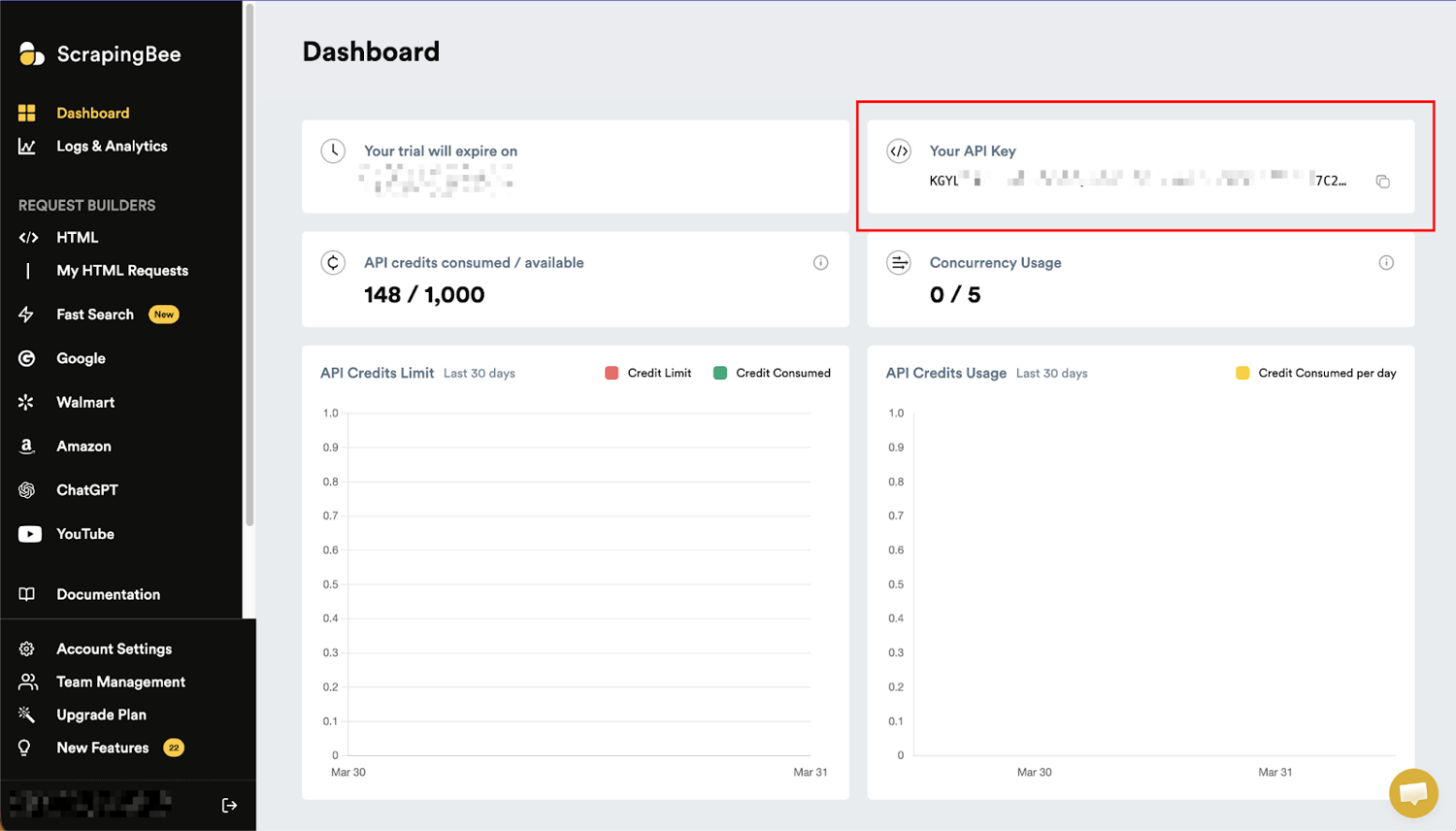
Step #2: Make Your First Request with cURL
The API endpoint works exactly like any other URL.
Pass your API key and the target URL as query parameters:
# Basic page scrape — returns rendered HTML
curl -G "https://app.scrapingbee.com/api/v1/" \
  --data-urlencode "api_key=YOUR_API_KEY" \
  --data-urlencode "url=https://example.com"

# With JavaScript rendering enabled (default)
curl -G "https://app.scrapingbee.com/api/v1/" \
  --data-urlencode "api_key=YOUR_API_KEY" \
  --data-urlencode "url=https://example.com" \
  --data-urlencode "render_js=true"

# AI-powered data extraction — returns structured JSON, no parsing required
curl -G "https://app.scrapingbee.com/api/v1/" \
  --data-urlencode "api_key=YOUR_API_KEY" \
  --data-urlencode "url=https://example.com/products" \
  --data-urlencode "ai_query=Extract all product names and prices" \
  --data-urlencode 'ai_extract_rules={"product_name":{"type":"string","description":"Product name"},"price":{"type":"string","description":"Product price"}}'
The --data-urlencode flag handles URL encoding automatically. No manual escaping of special characters in your query parameters.
Pro Tip: In my experience, the fastest way to determine whether a target site needs ScrapingBee rather than plain cURL is a two-second test. Run curl -sS -L -o /dev/null -w "%{http_code}" https://target-site.com. A 200 means cURL alone will likely work. A 403, 429, or a 200 that returns suspiciously little data means the site has protection in place, and you need a managed solution.
Ship Reliable Web Data Pipelines with ScrapingBee
Websites block scrapers. Proxies get banned. JavaScript-heavy pages return empty HTML. If you've spent time debugging why a cURL script that worked yesterday is failing today, you already know the maintenance cost of building data collection infrastructure from scratch.
With ScrapingBee, you describe what you want. Our scalable infrastructure handles the rest: rendering, proxies, anti-bot bypass, and retries.
Here's what you get the moment you connect ScrapingBee to your data collection pipeline:
- AI Data Extraction: Describe any data point in plain English; no CSS selectors, XPath, or re-engineering when layouts change
- Headless Browser Rendering: Every request runs through the latest browsers; JavaScript SPAs, dynamic content, lazy-loaded elements, all handled automatically
- Built-in Proxy Rotation: A continuously refreshed proxy pool keeps your scraper running across high-volume jobs without manual IP management
- Anti-Bot Bypass: Stealth and premium proxy modes cut through Cloudflare, Datadome, and other advanced protection layers at scale
- 1,000 Free API Credits: Enough to test your entire workflow, validate your pipeline, and scrape hundreds of pages before spending a cent
Start scraping today, and let a production-grade AI web scraping API handle the blocks, bans, and broken scripts so you don't have to.
Frequently asked questions on cURL file downloads
Does curl work on Windows?
Yes. curl has shipped natively with Windows 10 and Windows 11 since 2018, no installation required. Open Command Prompt or PowerShell and run curl --version to confirm. On older Windows versions, download the official binary from curl.se. Once installed, cURL to download file works identically across all platforms.
How do I speed up curl downloads for large batches?
Use parallel execution with GNU parallel: cat urls.txt | parallel -j 5 curl -L -O {}. Increase -j for more concurrency. Start at 5 and adjust based on server tolerance. For single large files, --limit-rate prevents throttling that slows transfers on congested connections.
How do I download multiple files with curl?
Use URL globbing for numbered sequences: curl -O https://example.com/file[1-100].zip. For a list of URLs, pipe through xargs: xargs -n 1 curl -L -O < urls.txt. For parallel batch downloads: cat urls.txt | parallel -j 5 curl -L -O {}.
How do I resume an interrupted curl download?
Add -C - to your command: curl -C - -L -O https://example.com/large-file.zip. cURL automatically detects an existing partial file and resumes from the correct byte offset. Combine with --retry 3 for fully automatic recovery.
Can curl download files that require authentication?
Yes. When you need curl to download a file from a protected source, use -u username:password for Basic Auth, -H "Authorization: Bearer $TOKEN" for API token auth, and -b cookies.txt for cookie-based sessions. Always read credentials from environment variables rather than hardcoding them in scripts.
Why is my curl download returning an HTML page instead of the file?
Two likely causes: a missing -L flag (the URL redirects, and cURL stops at the redirect response), or the server requires authentication you haven't provided. Run curl -IL [URL] to inspect the full redirect chain and response headers without downloading anything.
How do I download a large file with curl without it timing out?
Set --max-time for the total transfer time and --connect-timeout for the initial connection: curl --connect-timeout 30 --max-time 3600 -C - -L -O [URL]. The -C - flag ensures a timeout results in a resume rather than a restart.
When should I use a web scraping API instead of curl?
Use a web scraping API when the target site renders content via JavaScript, blocks automated requests, or requires proxy rotation at scale. Plain cURL works well for static files and open APIs. For anything that requires a real browser, anti-bot bypass, or managed proxy infrastructure, our web scraping API handles it all automatically.
cURL Download Commands (Complete Reference)
This tutorial has shown you how to download using cURL. Now, here's every command covered in this guide, in one scannable place. Bookmark this and return whenever you need the right flag fast.
| Task | Command |
|---|---|
| Download a file | curl -L -O https://example.com/file.zip |
| Save with a custom name | curl -L -o myfile.zip https://example.com/file.zip |
| Follow redirects | curl -L -O https://example.com/file.zip |
| Resume interrupted download | curl -L -C - -O https://example.com/file.zip |
| Retry on failure | curl -L --retry 3 --retry-delay 5 -O https://example.com/file.zip |
| Silent download | curl -sS -L -O https://example.com/file.zip |
| Show progress bar | curl -L -# -O https://example.com/file.zip |
| Show headers only | curl -IL https://example.com/file.zip |
| Download with Basic Auth | curl -u "$USER:$PASS" -L -O https://example.com/file.zip |
| Download with Bearer token | curl -H "Authorization: Bearer $TOKEN" -L -O https://api.example.com/data.csv |
| Limit download speed | curl --limit-rate 500k -L -O https://example.com/file.zip |
| Download multiple files (glob) | curl -L -O https://example.com/file[1-10].zip |
| Download from a URL list | xargs -n 1 curl -L -O < urls.txt |
| Parallel downloads | cat urls.txt | parallel -j 5 curl -L -O {} |
| Verify checksum | sha256sum -c file.zip.sha256 |
| Debug a failed download | curl -v -L -O https://example.com/file.zip 2>&1 | head -80 |
| Use a proxy | curl -x http://proxy:8080 -L -O https://example.com/file.zip |
| Create output directories | curl -L --create-dirs -o ./downloads/sub/file.zip https://example.com/file.zip |
| Production-ready command | curl -L -C - --retry 3 --retry-delay 5 --fail -sS --create-dirs -o "./downloads/$(date +%Y%m%d)_file.zip" https://example.com/file.zip |
Further Reading
The techniques in this guide pair directly with other tools and workflows in your data collection stack. These ScrapingBee articles extend what you've learned here:
| Article | Why it's relevant |
|---|---|
| Python Web Scraping: Full Tutorial with Examples | When cURL's output needs parsing, Python is the natural next step |
| How to use asyncio to scrape websites with Python | Parallel download patterns in Python, complementing cURL's xargs approach |
| Web Scraping with Linux and Bash | Extends the shell scripting techniques used throughout this guide |
| How to bypass Cloudflare antibot protection at scale | The infrastructure layer that cURL alone can't handle |
| How to use a Proxy with Python Requests | Proxy configuration patterns that mirror cURL's -x flag, in Python |
| Python Web Crawling | Building full crawlers beyond what cURL's URL globbing can handle |
Happy cURL'ing! May your downloads be swift, your data be clean, and your dreams be unlimited.